Continuous Integration – Start at the beginning

Sometimes it’s easier to create a good Continuous Integration system from scratch than it is to improve a system which has been all bent out of shape to support bad practices or legacy issues. But if you’re going to take a wrecking ball to your CI system and start again, exactly how do you actually start? Well, in my experience, the best implementation I’ve worked on has been when the customer’s requirements were clearly understood first.


Start at the Beginning

Rather than go ahead and start by choosing your favorite CI tools and defining a standard system, start by picking up a pen and paper and go and speak with as many people involved in project delivery as you possibly can. This should include BAs, Project Managers, Testers, Developers and Systems Architects. Ask them what inputs and outputs they would expect to see and receive from the build and deploy system. Ask them what manual steps they do – you never know, your CI system might be able to help automate some of their work, even for the BAs. Quite often, Project Managers want to see quality metrics from their projects, and to get these they often rely on a manual process, perhaps expecting QA to produce bug statistics or asking a developer to produce some build reports. It seems that quite often, people are unaware of exactly what a CI system can really do for them.


Collaborative Design

Using the feedback from these sources, start to define a system on paper and continue to get feedback on your design. This needn’t be a long task, but it will help to stop you from going down the wrong path early on. Concentrate on simplicity and consistency. An over elaborate system will be hard for people to understand and then support, and ultimately that can be damaging. Don’t have several systems all doing the same thing, just have the one, reduce wasteful repetition. Don’t have 2 different types of build server in use unless you have to. Don’t support 2 types of static analysis tool that effectively measure the same thing, instead, settle on one.

In your design, be sure to include:

  • A Source Control system
  • A build tool or tools
  • Unit test framework(s)
  • A static analysis system
  • A reporting mechanism (possibly a dashboard)
  • Integration and Acceptance testing
  • A deployment mechanism

Design your system with the aim of making it work seamlessly, all the constituent parts should ultimately work together in an automated flow. You will find, as the system gets used, that there are likely to be several manual inputs into your system which it may be possible to automate further. For instance, I have seen an automated Hudson/Bamboo plan creation system using selenium, where users have only to input a fraction of the number of details than they would otherwise need to!

Target bottlenecks. Invest a proportionate amount of time addressing the high priority, high value parts of the system. Work out where the bottlenecks were in the old system (or the manual system you are hoping to replace) and invest the right amount of time working on those areas. There’s no point producing a system that can reliably deploy software to any OS when you only need to support one, especially if your build process is shaky and could do with more attention!


Choose your Tools Carefully

When deciding what tools to use for your system, there are a number of things to consider. The obvious ones are cost, suitability for purpose, performance and scalability. But consider other factors as well, such as how readily available the support for your tools is, check out the user communities presence and their support coverage. Also consider personal preference! If a whole team really want to use a particular tool for some reason, perhaps they’ve been excited about it for some time, then at least consider using it, you know it will get that team’s support!


Sell it!

Before you start the hard (but fun) work of implementing your system, be sure you get the buy-in you need from the management. I’m not just talking about getting approval, I literally mean buy-in. Management should feel invested in this system. Sell the system to them by highlighting the existing issues that it is going to help solve. The more the management teams buy into Continuous Integration, the more support it will get, the more it will be used, and the better we become at making software. If we fail to get management buy-in, we can easily be left with a system that is all too easily overlooked and ignored, and we can end up with a Continuous Integration System, but not actually practicing Continuous Integration.


Installing Sonar on the CI server

I’ve been trying out Sonar and it looks great – it’s much more presentable than trawling through maven sites to find build reports. Anyway, I decided to install it on the live build server today, and this is how it happened:

What you’ll need:

Maven

Java JDK

Download Sonar from http://www.sonarsource.org/downloads/

Copy the zip archive over to the build server. I unzipped it in /home/maven/sonar

I’m running a linux x86 32 bit system, so to start Sonar, I cd to:

/home/maven/sonar/sonar-2.5/bin/linux-x86-32

and run:

./sonar.sh start

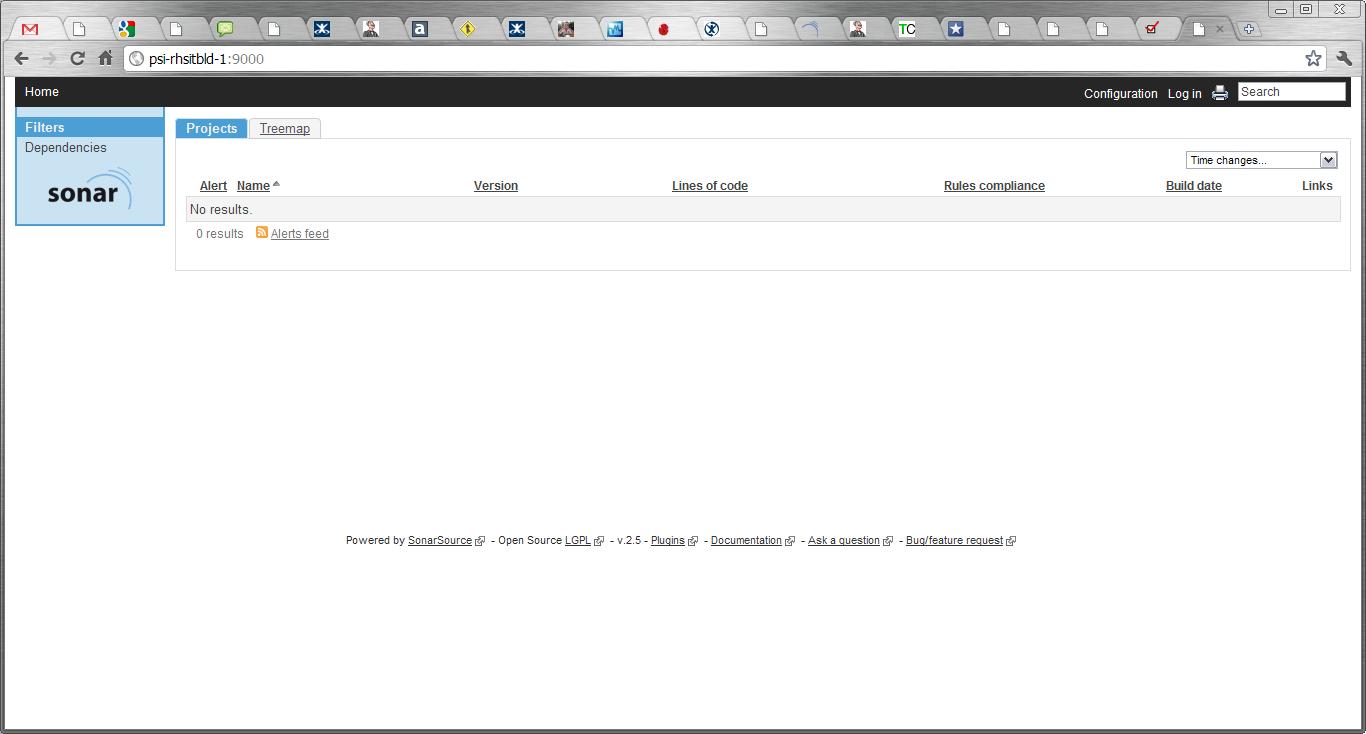
Sometimes it can take a few minutes for the server to start up, so be patient. Eventually you’ll find your Sonar site up and running at http://{SERVERNAME}:9000 (where {SERVERNAME} is the name of your build server where you installed Sonar. It should look a bit like this:

Next, you have to configure Maven. I’m running with the default Apache Derby database which ships with Sonar, so I added the following section to my maven settings.xml (which I found under /home/maven/maven-2.0.9/conf). You need to add this to the <profiles> section:

<profile>
<id>sonar</id>
<activation>
<activeByDefault>true</activeByDefault>
</activation>
<properties>

<sonar.jdbc.url>
jdbc:derby://localhost:1527/sonar;create=true
</sonar.jdbc.url>
<sonar.jdbc.driver>org.apache.derby.jdbc.ClientDriver</sonar.jdbc.driver>
<sonar.jdbc.username>sonar</sonar.jdbc.username>
<sonar.jdbc.password>sonar</sonar.jdbc.password>
<sonar.host.url>http://localhost:9000</sonar.host.url>

</properties>
</profile>

Then you will need to run your first project against sonar! Go to the root of one of your projects on the build server (for me they were in /home/maven/Bamboo/xml-data/build-dir/PROJ_NAME) and run:

mvn clean install sonar:sonar

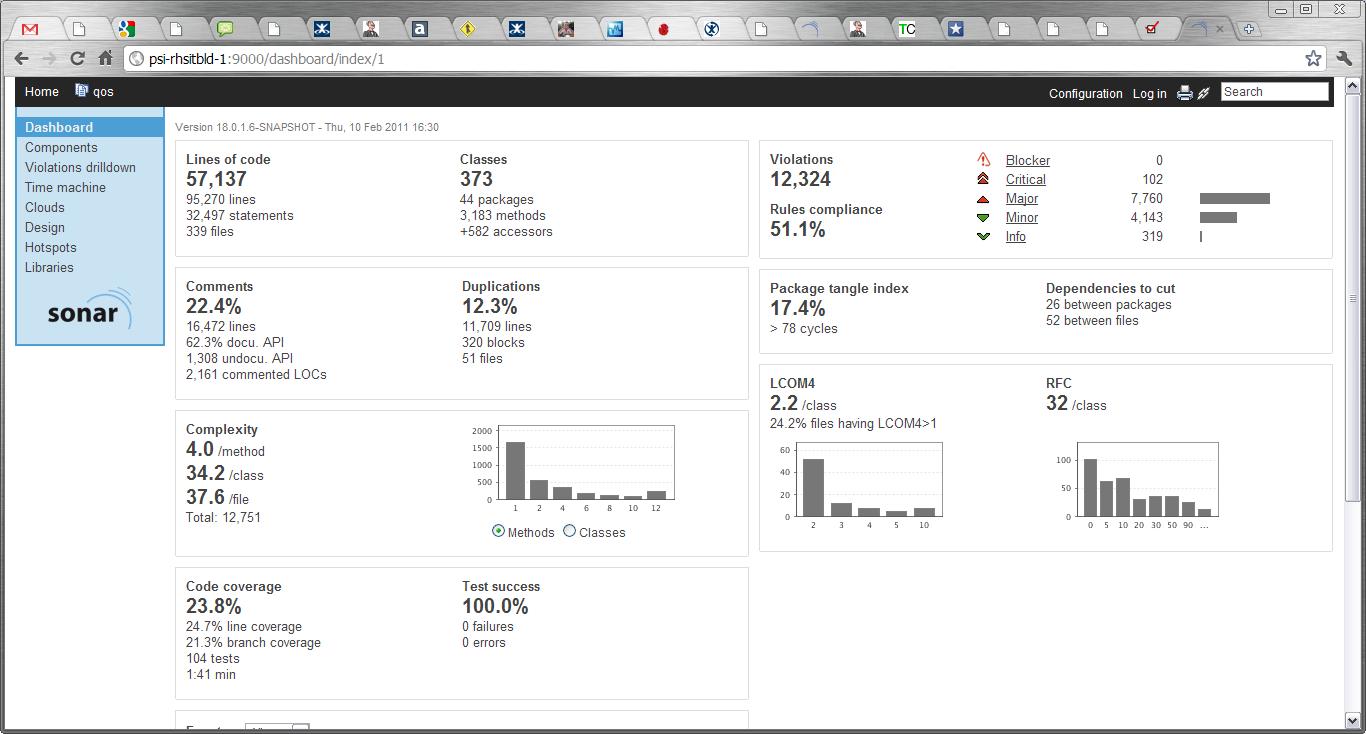
Go to http://{SERVERNAME}:9000 and you should now see your project listed. Click on it and revel in sonar goodness:

I’ll migrate to a MySQL db next week, and put an update here about what to do.

UPDATE:

Using a MySql db is a doddle. Once you’ve installed the MySql you simply comment out the Derby db connection details and uncomment the MySql section in the sonar.properties file (which lives in the conf directory of your sonar installation)

sonar.jdbc.url:                            jdbc:mysql://localhost:3306/sonar?useUnicode=true&characterEncoding=utf8
sonar.jdbc.driverClassName:                com.mysql.jdbc.Driver
sonar.jdbc.validationQuery:                select 1

And that’s it!

Changing Guest OS Resolution in VirtualBox

I just installed VirtualBox on my laptop, so that I can run one or two VMs on there, and the installation and setup are really quite straightforward. The “First Steps” section in the documentation here is good enough to see you through the, er, first steps, but there are a couple of other things they really ought to put in this section, rather than later on in the documentation.

One of the first things I wanted to do was change my screen resolution, because it defaulted to 800×600 and didn’t give me any better options. So, it turns out (if you bother to read as far as chapter 4 of the online docs) that to do this you must install some “Guest Additions”… and this is how you do it:

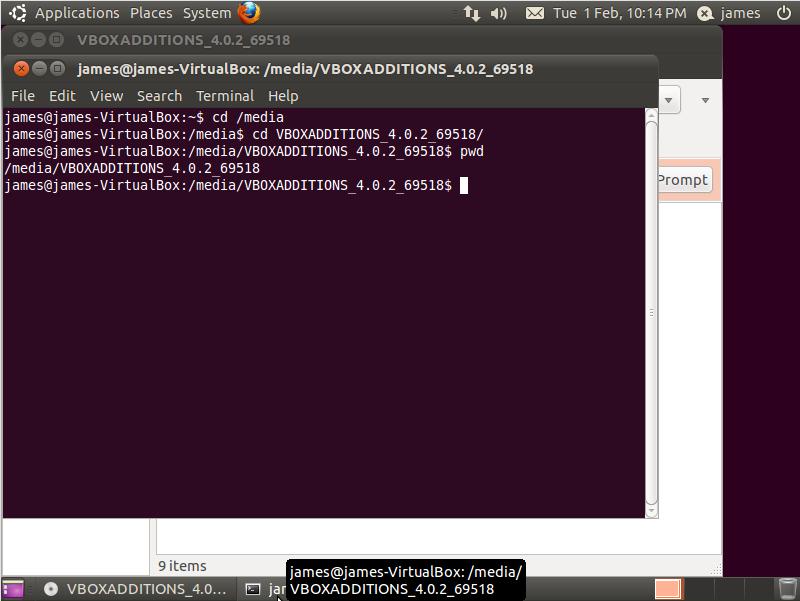
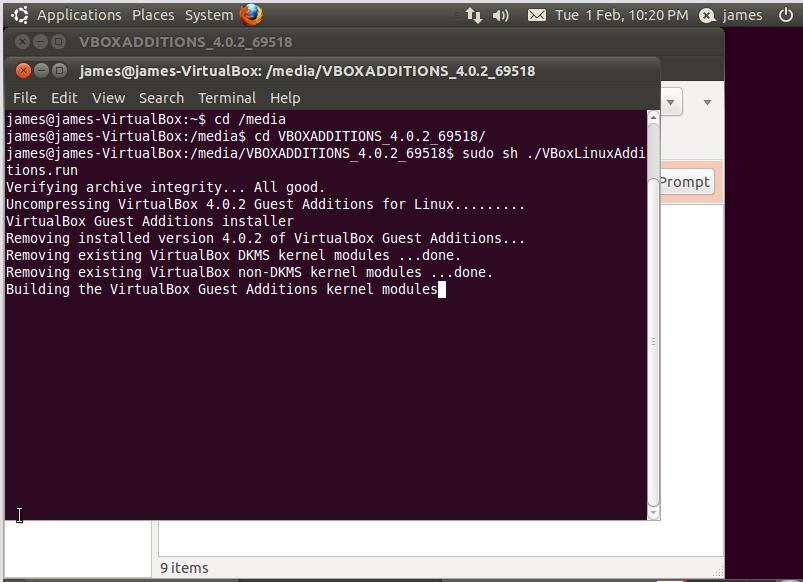
Open a terminal and cd to where your virtual CD drive appears, in my case it was in /media/VBOXADDITIONS_4.0.2_69518/ (see image below – click on image for larger pic)


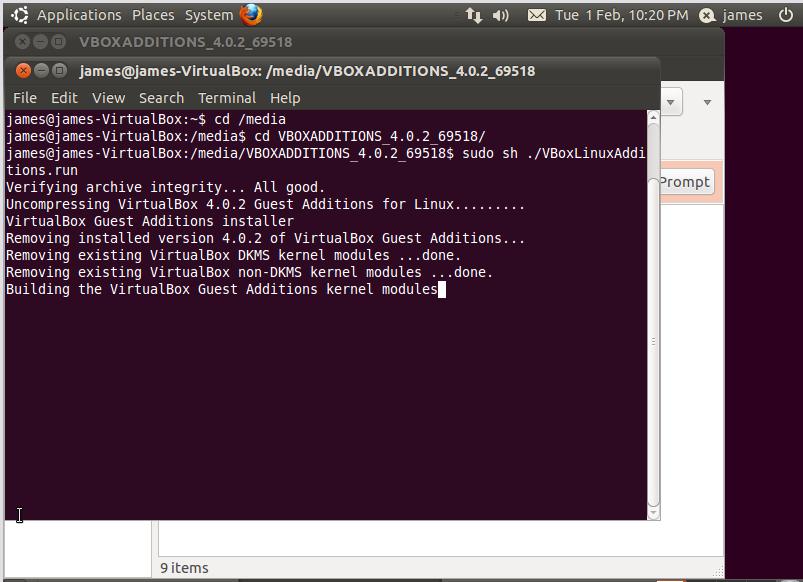
Next, run the correct installer. I was running a Linux VM so I chose VBoxLinuxAdditions.run. Run this file by typing “sudo sh ./VBoxLinuxAdditions.run”, as shown below:


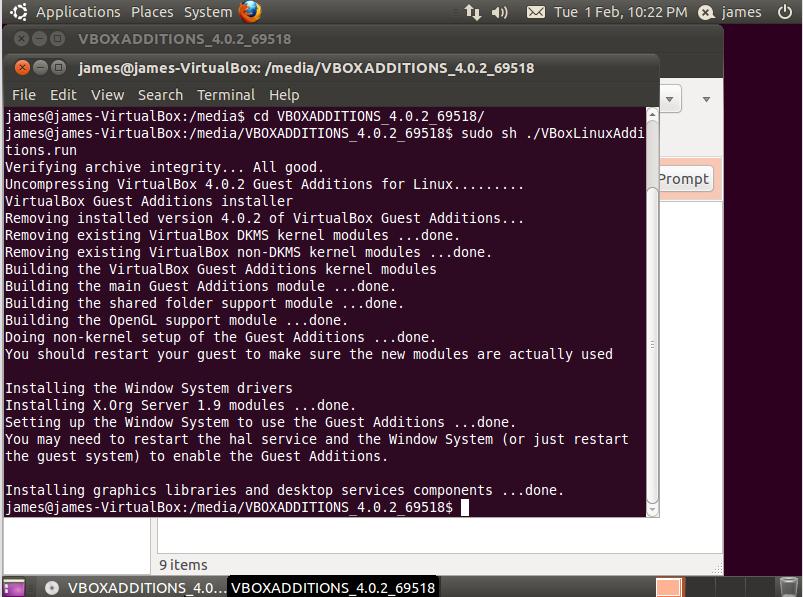
Once this has completed it’ll give you a message telling you to restart the guest system, as shown below:

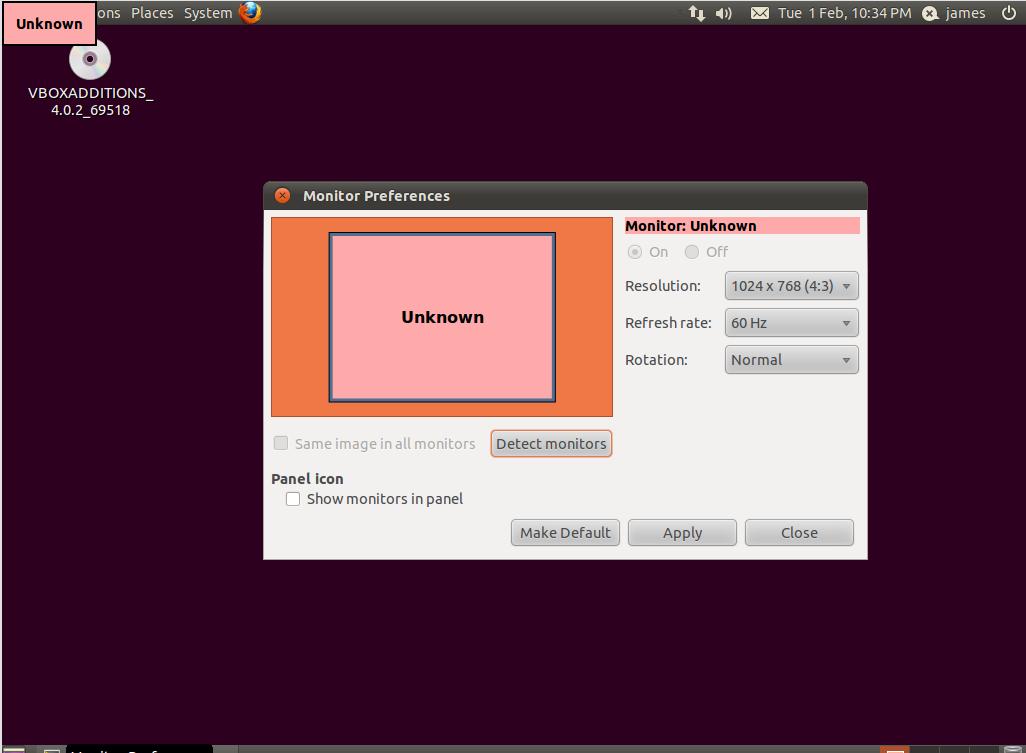
So do as it says, shut down the VM, open VirtualBox and start up your VM again. Now we can go into System > Monitor Preferences, and you should see something like the screen below, with the new (better) screen resolution available to you:

Application Deployment Best Practices

Someone just asked me to define “best practices” for a collection of application deployments. The question was impossible to answer because the applications we were talking about were all bespoke, so each one had good and bad ways of deploying them. It would take an age to go through each one and explain which is the best way of doing their unique installation operations.

However, I’ve given it some thought and I think there are still a handful of best practices for application deployments which can pretty much extend across almost all applications, certainly all the ones we were talking about. Here are some of what I would define as best practices for application deployments.

  1. Keep the installation structure SIMPLE. Files and directories should be kept to a minimum. Don’t install anything that’s never going to be used.
  2. Always get rid of old files. When something goes wrong on a production host, the last thing I want to be doing is trawling through random directories and copies of old files to find what’s gone wrong.
  3. Automate it – this almost goes without saying, but deployments should NOT be manual, there’s far too much room for human error. Use a tool for doing deployments, something that supports the native OS operations, like rpm using yum for RedHat. Alternatively, if you’re deploying to multiple different OSs, try using a scripting language to script the deployments.
  4. Don’t over do it with the symlinks. Use them only if you have to. It’s too easy to end up with symlinks pointing to the wrong place, or to break them altogether. It’s also a bad idea for your applications themselves to rely on symlinks. I would rather enforce standardisation of the environments and have my applications use real paths than rely on symlinks. Symlinks simply add another level of configuration and a reliance on something else which is all too breakable.
  5. Delete everything first. If you’re simply deploying a new directory or package, completely remove the existing one. Take a backup if necessary, but delete that backup at the end if the deployment is successful. This is similar to point 2, but more robust. I think that if at all possible, you shouldn’t rely on sync tools like rsync/xcopy/robocopy to do your deployments. If your time and bandwidth allows, delete everything first and upload the complete new package, not just a delta.
  6. Have a roll back strategy. Things can sometimes go wrong and often the best policy is to roll-back to a known-working version. Keeping a backup of the last known working version locally on the target machine can often be the quickest and simplest method, but again I would avoid this option if bandwidth allows. I don’t like having old versions sitting around on servers, it leads to cluttered production boxes. I would much rather do a roll-back using the same mechanism used for doing a normal deployment.
  7. Don’t make changes to your deploy mechanism or deploy scripts between deploying to different environments. This is just common sense, but I’ve seen a process where, in order to actually deploy something onto a production server, the deploy script had to be manually changed! Suffice to say I wasn’t a fan of that idea.

As you can probably appreciate, this list is generally not written with installers (such as msi files) in mind, maybe I’ll look at that another time.

Principles of Continuous Integration

I’m a big fan of CI, and as a simple best practice/process for development teams I think it’s right up there as one of the most important to get right. Most software places now have a Continuous Integration system, but do they actually practice Continuous Integration? In my experience the answer isn’t always “yes”.

For me, practicing CI goes a lot further than simply having a CI system setup, and running check-in/nightly builds and running unit test/code inspections etc and so on.

So what is my definition of “Practicing Continuous Integration”? Well, for me it is simply:

  • Having a CI system (obviously)
  • Adopting the principles of Continuous Integration

I did a quick google to see if I could find a simple list of some good CI principles – I know I’ve read many of them before in numerous good books such as Paul M Duvall’s “Continuous Integration” and Jez Humble’s “Continuous Delivery”, but I couldn’t find an easy cut-out-and-use version on the internet, so I’ve decided to knock something up here 🙂

Everyone loves a good list so here’s a list of what I believe to be some principles of CI:

  1. Fix your build failures, immediately. Never leave a build broken. If you do, the build team should be within their right to roll back your last commit.
  2. Every check-in should be an improvement on the last. Each check-in should have value, otherwise why do it? An improvement could be defined as a new piece of functionality, a bug fix, an increase in code coverage etc. If the improvement cannot be easily measured, ensure you detail it in your commit log.
  3. Never check-in on a broken build (unless you’re fixing the breakage)! If you have multiple commits to a codebase after the original breaking commit, then this leaves a bit of a bad smell in your CI system. Firstly, unless your commits are coming thick and fast, it means you aren’t reacting to your build failures, and this is not acceptable – it basically means you’re not playing ball and your letting the rest of the team down. Secondly, the cause of the original breakage can potentially be a lot harder to identify if several other check-ins have happened since the original check-in which broke the build!
  4. Code should be built and tested before checking in to source control. You can either do this by compiling the build locally yourself and checking that the tests pass, or you could invest in a CI/VC system that can perform pre-commit builds, such as Pulse, TeamCity and ElectricCommander (list obtained from Jez Humble’s Continuous Delivery book). However, you can use pre-commit hooks in svn to achieve something similar, and I’m led to believe this can also be done in Git and buildbot.
  5. Everyone should be interested in the output of the CI system. And that includes project managers and testers. Working on the principle that at some point a build works, and every commit thereafter is an improvement, we should be proud to display the results of every build to the whole project team, and we should react quickly if, for any reason, our last check-in was not an improvement to the state of our software.
  6. Functional automated tests should be run as part of the CI process. If you have a suite of automated regression tests, the chances are it’s no great effort to hook them up to the CI system, and definitely worth it in the long run.
  7. Make the builds fit for purpose. I absolutely hate having to wait ages for a simple check-in build to compile, when all I really want to know is whether I have broken my unit tests or violated some important rule. Make the check-in builds quite lightweight, run your unit tests and code coverage tests only, perhaps. Do you really need to run all your code inspections and analysis tools as well as run automated functional tests every time there’s a check-in? Chances are you don’t, so keep the check-in builds light, and leave the heavy duty work for the nightly builds, while we’re all asleep!
  8. React to the feedback. The CI system is a tool to help drive improvement and quality as much as anything else, so we should never ignore it. However, it’s easy to ignore your CI system if the feedback isn’t relevant. The solution is to work closely with the build team, as well as the rest of the project members, to ensure the build feedback is targeted and relevant

That’s about it for my list so far, I’m sure I’ll add to it as time goes by. Please feel free to add your suggestions!

Dependency report causing maven builds to run slowly

Issue:

Maven builds running unusually slowly when using site-deploy. Dependency report taking a long time to generate. Url is invalid – repository will be blacklisted.

Cause:

By default, dependency location checking is enabled, and maven will try to connect to the dependency repository URLs for each external dependency. If it cannot connect to those URLs for whatever reason, it’ll time out – but not until after a long pause, sometimes up to 10 minutes for each URL.

Fix:

One way of speeding up these builds is to bypass the whole dependency checking process. You can do this by defining the maven-project-info-reports plugin in your pom, and setting dependencyLocatiosEnabled to false:


<plugin>

<groupId>org.apache.maven.plugins</groupId>

<artifactId>maven-project-info-reports-plugin</artifactId>

<configuration>

<dependencyLocationsEnabled>false</dependencyLocationsEnabled>

</configuration>

</plugin>


The only drawback of this fix is that the dependency repository locations won’t be published in your maven site report.

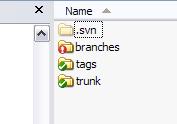
Ant script to delete .svn dirs

I’ve used this script a good few times, so I’m writing it here for safe keeping!
It’s just a simple Ant script for deleting the .svn folders from within a folder structure, simple as that. There’s an example of how to do the same thing on the Ant website, but at the moment it’s wrong (I think they’re missing a slash after the .svn).

So here’s the target:

<target name=”delete”>
<delete includeemptydirs=”true”>
<fileset dir=”C:\James.Betteley\Projects\” defaultexcludes=”false” includes=”**\*.svn\”/>
</delete>
</target>

A great way to corrupt a .war file

So, yesterday I had an interesting issue with a corrupt .war file which was producing all sorts of errors when I tried to extract it, for instance:

BUILD FAILED
java.lang.RuntimeException: data starting at 0 is in unknown format

When I manually extracted the war file, or did an inspection on it (using “unzip -T”), then it gave these errors:

error:  invalid compressed data to inflate

It turns out I was corrupting it by running a filter on it at an earlier stage in the build, a bit like this:

<copy todir=”${release.dir}/${app.name}/tomcat/” includeEmptyDirs=”false”>
<fileset dir=”${build.dir}/${app.name}/tomcat/”>
</fileset>
<filterset>
<filter token=”SERVERNAME” value=”${dest}” />
<filter token=”DBSERVER” value=”${db.server}” />
</filterset>
</copy>

So basically I had to make sure that the war file was copied separately, and then the other files (which i wanted to run the filter on) were copied afterwards. Interesting…

Ant Unzip Issues

Let’s say I had a simple ant script which looked a little something like this:

<project name=”unzipstuff” default=”unzip”>
<target name=”unzip”>
<unzip src=”/home/webapps/edwinstarr.war” dest=”/home/webapps/edwin/starr/” >
</unzip>
</target>
</project>

Why oh why oh why oh why (etc and so on) would it fail with the following error?

BUILD FAILED
java.lang.RuntimeException: data starting at 0 is in unknown format
at org.apache.tools.zip.ZipEntry.setExtra(ZipEntry.java:272)
at org.apache.tools.zip.ZipFile.resolveLocalFileHeaderData(ZipFile.java:454)
at org.apache.tools.zip.ZipFile.<init>(ZipFile.java:153)

Is the .war file screwed up? If so, why does it extract ok if I do it manually? I wasted approximately 4 hours of my life on this before embarking on a convoluted and silly workaround which is leaving me feeling defeated.

Maven sites for failed builds

I’m using Bamboo and Maven to build our code, and Cobertura as the unit test coverage checking tool. I’ve setup the builds to fail if there are less than, say, 70% unit test coverage. However, I still want the maven site to be created so that I can go around waving it in people’s faces. The trouble is, if there’s less than 70% coverage, the build fails and therefore no cobertura report is created in the maven site! Gah!

The good thing about the maven sites is that they’re easy for whole project teams to understand, not just devs and other technical people. If a build failed because there’s less than 70% unit test coverage I currently have to look in the bamboo build log to see exactly why it failed (I know I also get the emails but there are way too many of them for it to be manageable).

In short – is there a way of producing the cobertura code coverage reports even if the build fails?