Maven Release Plugin and Continuous Delivery

I was setting up a Continuous Delivery system using Maven as the build tool, Perforce as the SCM and Go (ThoughtWorks’ CI system). All was going perfectly well until I got to the point when I no longer wanted to make snapshot builds…

The idea behind my Continuous Delivery system was this:

  • Every check-in runs a load of unit tests
  • If they pass it runs a load of acceptance tests
  • If they pass we run more tests – Integration, scenario and performance tests
  • If they all pass we run a bunch of static analysis and produce pretty reports and eventually deploy the candidate to a “Release Candidate” repository where QA and other like-minded people can look at it, prod it, and eventually give it a seal of approval.

As you can see, there’s no room for the notion of “snapshot” and “release” builds being separate here. Every build is a potential release build. So, a few days ago I went right ahead and used the maven release plugin, and that was the last time I remember smiling, having fun, getting a full night’s sleep, and my brain not hurting.

The problem is this: the maven release plugin doesn’t really work for continuous delivery. And what’s more, it REALLY doesn’t work with Go and Perforce. I’ll start with the Go/Perforce issues: I got loads of errors thanks to the way Go runs as the system user, and creates its own clientspecs. The results of this debacle are detailed here and here.

I managed to finally get around the clientspec/P4/Go problems with some help from my colleague Toby Catlin who bears the scars of similar skirmishes with Go and Perforce from days gone by. The “fix” was to create a perforce config file and an “uber” client spec. The perforce config file specified the uber clientspec and it lived in the root of the project directory. It was hardly a satisfactory workaround, as it meant that every project would need to have this file, and the uber clientspec would need to be updated every time a new build job was created. But never mind that, it was just a relief to see the builds going green for a change.

And that’s when it happened… the release build completed. The maven release plugin increased the version number in the pom and checked it in. And then Go detected the change in the pom and checked it out again and started building again. This then updated the version number and checked it in, which in turn got detected and kicked off another build CAN YOU SEE THE GLARINGLY OBVIOUS PROBLEM HERE????

It’s obvious really. I’ve always made my maven release builds a manual process in the past and that was exactly why, I’d just forgotten all about it. So, I’ve decided not to use the maven release plugin at all. Every build now just creates a “release” build because I’ve removed all instances of the word SNAPSHOT from the poms. If they pass all their tests and look good enough, they’re automatically promoted to the release candidate repository. And everyone’s happy. Also, I’ve added a property to the builds which pulls in a variable from the Go system, and if that’s not present the “deploy to release candidate repository” step fails – this is to stop developers from manually creating releases – all release builds must come from the CI system.

Maven Release Plugin and Perforce Clientspecs

I’m getting a very annoying error trying to do maven release builds on our CI servers, which isn’t appearing on my local workstation. The build seems to fail because the pom file is under source control (I’m using Perforce) and so it’s read-only. However, It should check out the pom file so that it isn’t read only. Alas, that doesn’t seem top be working. Here are the errors I got initially:

[ERROR] BUILD ERROR
[INFO] ————————————————————————
[INFO] Error writing POM: C:\Program Files\Cruise Agent\pipelines\yadda\yadda\pom.xml (Access is denied)

The reason behind it appeared to be:

[ERROR] CommandLineException Exit code: 1 – Client ‘xpcruisebuildvm1-STANDARD-ALL’ can only be used from host ‘xpcruisebuildvm1’.

Command line was:p4 -d “C:\Program Files\Cruise Agent\pipelines\yadda\yadda” -p perforce.mycompany.com:1666 ed
it pom.xml
org.codehaus.plexus.util.cli.CommandLineException: Exit code: 1 – Client ‘xpcruisebuildvm1-STANDARD-ALL’ can only be used from host ‘xpcruisebuildvm1’

So the first thing I did was create a new clientspec for that machine which had all the files mapped to its c:\temp directory, and then tried to run the build again, assuming this would fix the issue but present me with a whole new problem about how to fit this all in to my CI system. However, this also failed:

[ERROR] BUILD ERROR
[INFO] ————————————————————————
[INFO] Error writing POM: C:\TEMP\yadda\pom.xml (Access is denied)

This is confusing because the clientspec I’m using does have these files in its view and therefore Maven should be able to edit them. Also, this is how I have it setup on my local workstation, and that works fine…

After a lot of trial and error I managed to make some progress. One of the issues was that the client spec had the following mapping in it:

//JavaDevelopment/main/yadda/… //XPCRUISEVM808_release/temp/yadda/…

and the root was set to C:\

This means all P4 files should sync to my C:\TEMP directory, which already existed on the machine. As expected, the sync worked fine and all files appeared in C:\TEMP\yadda.

And therein lies the rub: the client spec uses lowercase “temp”, while the windows directory was uppercase “TEMP”. As simple as that. I changed the client spec to math the filesystem and for good measure updated my release plugin version to 2.1. Problem solved (well, actually that presents me with a whole new problem because I don’t want every build agent to have different client specs, because I’m using Go, and that puts them in it’s own directory under the name of the build job. Grrrr).

POM ‘ release:prepare release’ not found in repository

I’m rather irritatingly getting this error in my maven builds at the moment, trying to setup some release builds using Go:

POM ' release:prepare release' not found in repository

One issue I have with Go is that it doesn’t natively support maven. This isn’t really much of a big deal because I can just tell it to run a custom command, and point it to the mvn shell or batch file (this could be a bit of a pain if I want my builds run on windows and/or linux but don’t want to have to define separate build jobs for each one, but I don’t, and I can’t think of any reason why I would, so that’s ok). Anyway, the issue this time is with the way I setup the build job. I used the new (in version 2.2) clicky-UI to setup the job, like telling it to run the mvn batch file, and what arguments to pass. This just seemed not to work. When I looked at the Go xml file it looked a bit like this:

<job name=”build_release”>

<tasks>

<exec command=”D:\buildTools\maven\2.2.1\bin\mvn.bat” workingdir=”yadda\yadda”>

<args>-B release:prepare release:perform</args>

</tasks>

<resources>

<resource>windows</resource>

</resources>

</job>

So I deleted it and manually edited the xml, making it look like this instead:

<job name=”build_release”>

<tasks>

<exec command=”D:\buildTools\maven\2.2.1\bin\mvn.bat” args=”-B release:prepare release:perform” workingdir=”yadda\yadda” />

</tasks>

<resources>

<resource>windows</resource>

</resources>

</job>

And this seems to have fixed it. Not very impressive at all.

Continuous Delivery using build pipelines with Jenkins and Ant

My idea of a good build system is one which will give me fast, concise, relevant feedback, but I also want it to produce a proper finished article when I’ve checked in my code. I’d like every check-in to result in a potential release candidate. Why? Well, why not?

I used to employ a system where release candidates were produced separately to my check-in builds (also known as “snapshot” builds). This encouraged people to treat snapshot builds as second rate. The main focus was on the release builds. However, if every build is a potential release build, then the focus on each build is increased. Consequently, if every build could be a potential release candidate, then I need to make sure every build goes through the most rigorous testing possible, and I would like to see a comprehensive report on the stability and design of the build before it gets released. I would also like to do all of this automatically, as I am inherently lazy, and have a facebook profile to constantly update!

This presents me with a problem: I want instant feedback on check-in builds, and to have full static analysis performed on them and yet I still want every check-in build to undergo a full suite of testing, be packaged correctly AND be deployed to our test environments. Clearly this will take a lot longer than I’m prepared to wait! The solution to this problem is to break the build process down into smaller sections.

Pipelines to the Rescue!

The concept of build pipelines has been around for a couple of years at least. It’s nothing new, but it’s not yet standard practice, which is a pity because I think it has some wonderful advantages. The concept is simple: the build as a whole is broken down into sections, such as the unit test, acceptance test, packaging, reporting and deployment phases. The pipeline phases can be executed in series or parallel, and if one phase is successful, it automatically moves on to the next phase (hence the relevance of the name “pipeline”). This means I can setup a build system where unit tests, acceptance tests and my static analysis are all run simultaneously at commit stage (if I so wish), but the next stage in the pipeline will not start unless they all pass. This means I don’t have to wait around too long for my acceptance test results or static analysis report.

Continuous Delivery

Continuous delivery has also been around for a while. I remember hearing about it in about 2006 and loving the concept. It seems to be back in the news again since the publication of “Continuous Delivery”, an excellent book from Jez Humble and David Farley. Again the concept is simple, roughly speaking it means that every build gets made available for deployment to production if it passes all the quality gates along the way. Continuous Delivery is sometimes confused with Continuous Deployment. Both follow the same basic principle, the main difference is that with Continuous Deployment it is implied that each and every successful build will be deployed to production, whereas with continuous delivery it is implied that each successful build will be made available for deployment to production. The decision of whether or not to actually deploy the finished article to the production environment is entirely up to you.

Continuous Delivery using Build Pipelines

You can have continuous delivery without using build pipelines, and you can use build pipelines without doing continuous delivery, but the fact is they seem made for each other. Here’s my example framework for a continuous delivery system using build pipelines:

I check some code in to source control – this triggers some unit tests. If these pass it notifies me, and automatically triggers my acceptance tests AND produces my code-coverage and static analysis report at the same time. If the acceptance tests all pass my system will trigger the deployment of my project to an integration environment and then invoke my integration test suite AND a regression test suite. If these pass they will trigger another deployment, this time to UAT and a performance test environment, where performance tests are kicked off. If these all pass, my system will then automatically promote my project to my release repository and send out an alert, including test results and release notes.

So, in a nutshell, my “template” pipeline will consist of the following stages:

  • Unit-tests
  • Acceptance tests
  • Code coverage and static analysis
  • Deployment to integration environment
  • Integration tests
  • Scenario/regression tests
  • Deployments to UAT and Performance test environment
  • More scenario/regression tests
  • Performance tests
  • Alerts, reports and Release Notes sent out
  • Deployment to release repository

Introducing the Tools:

Thankfully, implementing continuous delivery doesn’t require any special tools outside of the usual toolset you’d find in a normal Continuous Integration system. It’s true to say that some tools and applications lend themselves to this system better than others, but I’ll demonstrate that it can be achieved with the most common/popular tools out there.

Who’s this Jenkins person??

Jenkins is an open-source Continuous Integration application, like Hudson, CruiseControl and many others (it’s basically Hudson, or was Hudson, but isn’t Hudson any more. It’s a trifle confusing*, but it’s not important right now!). So, what is Jenkins? Well, as a CI server, it’s basically a glorified scheduler, a cron job if you like, with a swish front end. Ok, so it’s a very swish front end, but my point is that your CI server isn’t usually very complicated, in a nutshell it just executes the build scripts whenever there’s a trigger. There’s a more important aspect than just this though, and that’s the fact that Jenkins has a build pipelines plugin, which was written recently by Centrum Systems. This pipelines plugin gives us exactly what we want, a way of breaking down our builds into smaller loops, and running stages in parallel.

Ant

Ant has been possibly the most popular build scripting language for the last few years. It’s been around for a long while, and its success lies in its simplicity. Ant is an XML based scripting language tailored specifically for software build related tasks (specifically Java. Nant is the .Net version of Ant and is almost identical).

Sonar

Sonar is a quality measurement and reporting tool, which produces metrics on build quality such as unit test coverage (using Cobertura) and static analysis tools (Findbugs, PMD and Checkstyle). I like to use Sonar as it provides a very readable report and contains a great deal of useful information all in one place.

Setting up the Tools

Installing Jenkins is incredibly simple.  There’s a debian package for Operating Systems such as ubuntu, so you can install it using apt-get. For Redhat users there’s an rpm, so you can install via yum.

Alternatively, if you’re already running Tomcat v5 or above, you can simply deploy the jenkins.war to your tomcat container.

Yet another alternative, and probably the simplest way to quickly get up and running with Jenkins is to download the war and execute:

java -jar jenkins.war

This will run jenkins through it’s own Winstone servlet container.

You can also use this method for installing Jenkins on Windows, and then, once it’s up and running, you can go to “manage jenkins” and click on the option to install Jenkins as a Windows Service! There’s also a windows installer, which you can download from the Jenkins website

Ant is also fairly simple to install, however, you’ll need the java jdk installed as a pre-requisite. To install ant itself you just need to download and extract the tar, and then create the environment variable ANT_HOME (point this to the directory you unzipped Ant into). Then add ${ANT_HOME}/bin (or %ANT_HOME%/bin if you’re on Windows) to your PATH, and that’s about it.

Configuring Jenkins

One of the best things about Jenkins is the way it uses plugins, and how simple it is to get them up and running. The “Manage Jenkins” page has a”Manage Plugins” link on it, which takes you a list of all the available plugins for your Jenkins installation:

To install the build pipeline plugin, simply put a tick in the checkbox next to “build pipeline plugin” (it’s 2/3 of the way down on the list) and click “install”. It’s as simple as that.

The Project

The project I’m going to create for the purpose of this example is going to be a very simple java web application. I’m going to have a unit test and an acceptance test stage.  The build system will be written in Ant and it will compile the project and run the tests, and also deploy the build to a tomcat server. Sonar will be used for producing the reports (such as test coverage and static analysis).

The Pipelines

For the sake of simplicity, I’ve only created 6 pipeline sections, these are:

  • Unit test phase
  • Acceptance test phase
  • Deploy to test phase
  • Integration test phase
  • Sonar report phase
  • Deploy to UAT phase

The successful completion of the unit tests will initiate the acceptance tests. Once these complete, 2 pipeline stages are triggered:

  • Deployment to a test server

and

  • Production of Sonar reports.

Once the deployment to the test server has completed, the integration test pipeline phase will start. If these pass, we’ll deploy our application to our UAT environment.

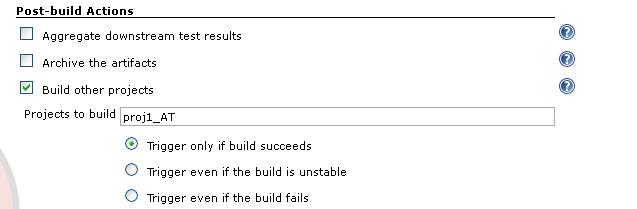
To create a pipeline in Jenkins we first have to create the build jobs. Each pipeline section represents 1 build job, which in this case runs just 1 ant task each. You have to then tell each build job about the downstream build which is must trigger, using the “build other projects” option:
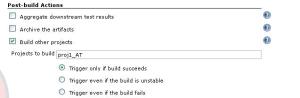
Obviously I only want each pipeline section to do the single task it’s designed to do, i.e. I want the unit test section to run just the unit tests, and not the whole build. You can easily do this by targeting the exact section(s) of the build file that you want to run. For instance, in my acceptance test stage, I only want to run my acceptance tests. There’s no need to do a clean, or recompile my source code, but I do need to compile my acceptance tests and execute them, so I choose the targets “compile_ATs” and “run_ATs” which I have written in my ant script. The build job configuration page allows me to specify which targets to call:

Once the 6 build jobs are created, we need to make a new view, so that we can start to visualise this as a pipeline:

We now have a new pipeline! The next thing to do is kick it off and see it in action:

Oops! Looks like the deploy to qa has failed. It turns out to be an error in my deploy script. But what this highlights is that the sonar report is still produced in parallel with the deploy step, so we still get our build metrics! This functionality can become very useful if you have a great deal of different tests which could all be run at the same time, for instance performance tests or OS/browser-compatibility tests, which could all be running on different Operating Systems or web browsers simultaneously.

Finally, I’ve got my deploy scripts working so all my stages are looking green! I’ve also edited my pipeline view to display the results of the last 3 pipeline builds:

Alternatives

The pipelines plugin also works for Hudson, as you would expect. However, I’m not aware of such a plugin for Bamboo. Bamboo does support the concept of downstream builds, but that’s really only half the story here. The pipeline “view” in Jenkins is what really brings it all together.


“Go”, the enterprise Continuous Integration effort from ThoughtWorks not only supports pipelines, but it was pretty much designed with them in mind. Suffice to say that it works exceedingly well, in fact, I use it every day at work! On the downside though, it costs money, whereas Jenkins doesn’t.

As far as build tools/scripts/languages are concerned, this system is largely agnostic. It really doesn’t matter whether you use Ant, Nant, Gradle or Maven, they all support the functionality required to get this system up and running (namely the ability to target specific build phases). However, Maven does make hard work of this in a couple of ways – firstly because of the way Maven lifecycles work, you cannot invoke the “deploy” phase in an isolated way, it implicitly calls all the preceding phases, such as the compile and test phases. If your tests are bound to one of these phases, and they take a long time to run, then this can make your deploy seem to take a lot longer than you would expect. In this instance there’s a workaround – you can skip the tests using –DskipTests, but this doesn’t work for all the other phases which are implicitly called. Another drawback with maven is the way it uses snapshot and release builds. Ultimately we want to create a release build, but at the point of check-in we want a release build. This suggests that at some point in the pipeline we’re going to have to recompile in “release mode”, which in my book is a bad thing, because it means we have to run ALL of the tests again. The only solution I have thought of so far is to make every build a release build and simply not use snapshots.


* A footnote about the Hudson/Jenkins “thing”: It’s a little confusing because there’s still Hudson, which is owned by Oracle. The whole thing came about when there was a dispute between Oracle, the “owners” of Hudson, and Kohsuke Kawaguchi along with most of the rest of the Hudson community. The story goes that Kawaguchi moved the codebase to GitHub and Oracle didn’t like that idea, and so the split started.
Maven Assembly Plugin Filtering

A colleague at Caplin made some changes to a build pom to setup some filtering on some files. We followed the instructions given on the maven site here. It basically tells you to list the files you want to filter in your assembly descriptor, and to then list the filter and then configure your filter file inside your assembly plugin, like this:

      <plugin>

<artifactId>maven-assembly-plugin</artifactId>

<version>2.2.1</version>

<configuration>

<filters>

<filter>src/assemble/filter.properties</filter>

</filters>

<descriptors>

<descriptor>src/assemble/distribution.xml</descriptor>

</descriptors>

</configuration>

</plugin>

If you do this though, you’ll get an error saying something like:

[INFO] Error configuring: org.apache.maven.plugins:maven-assembly-plugin.

Reason: ERROR: Cannot override read-only parameter: filters in goal: assembly:single

This is basically because the Maven documentation is wrong. In reality you need to add the filters section as a child of the build element, not a child of the assembly plugin’s configuration element.

So, it should look more like this:

    <build>
<filters>
<filter>src/assemble/filter.properties</filter>
</filters>
<plugins>

<plugin>
<artifactId>maven-assembly-plugin</artifactId>
<version>2.2-beta-1</version>
<executions>
<execution>
<id>make-assembly</id>
<phase>package</phase>
<goals>
<goal>single</goal>
</goals>
<configuration>
<descriptors>
<descriptor>src/main/assembly/kit.xml</descriptor>
</descriptors>
<finalName>${pom.artifactId}-${pom.version}-${p4.revision}</finalName>
<outputDirectory>build/maven/${pom.artifactId}/target</outputDirectory>
<workDirectory>build/maven/${pom.artifactId}/target/assembly/work</workDirectory>
</configuration>
</execution>
</executions>
</plugin>

</plugins>

</build>

Changing a filename using the maven assembly plugin

I’m currently working on a project which requires the build to produce a zip archive of the jar and some other stuff (doc files mainly). I’ve used the maven assembly plugin, with an assembly descriptor to help me out here. However, there was one slightly unusual requirement – I needed to change the name of the jar so that inside the zip, it has a non-standard name, and no version number (the reasons behind this are fairly weak, but basically it’s because a load of other scripts, which we can’t change, expect to find the jar in this non-standard format).

So, the build produces:

myproject-1.0.0.0-SNAPSHOT.jar

but in the zip I need to have:

my-project.jar

Here’s how I did it.

  • Include the maven-assembly plugin in the build:

<plugin>
<artifactId>maven-assembly-plugin</artifactId>
<version>2.2-beta-1</version>
<executions>
<execution>
<id>make-assembly</id>
<phase>package</phase>
<goals>
<goal>single</goal>
</goals>
<configuration>
<descriptors>
<descriptor>src/main/assembly/kit.xml</descriptor>
</descriptors>
<finalName>${pom.artifactId}-${pom.version}</finalName>
<outputDirectory>build/maven/${pom.artifactId}/target</outputDirectory>
</configuration>
</execution>
</executions>
</plugin>

  • Create the kit.xml in src/main/assembly and specify <destName> in the file inclusion. Here’s my kit.xml:

<assembly>
<id>kit</id>
<formats>
<format>zip</format>
</formats>
<fileSets>
<fileSet>
<directory>src/main/resources</directory>
<outputDirectory>doc</outputDirectory>
<includes>
<include>*.*</include>
</includes>
</fileSet>
</fileSets>
<files>
<file>
<source>build/maven/${artifactId}/target/${artifactId}-${version}.${packaging}</source>
<outputDirectory>/</outputDirectory>
<destName>my-project.jar</destName>
</file>
</files>
</assembly>

As you can see, the assembly descriptor has a “files” section, which is what does the trick for us. I’ve isolated the actual section below for clarity:

<files>
<file>
<source>build/maven/${artifactId}/target/${artifactId}-${version}.${packaging}</source>
<outputDirectory>/</outputDirectory>
<destName>my-project.jar</destName>
</file>
</files>

Automate Configuration Management Using Tokens!

Devops engineers are often tasked with the job of managing deployments of code to multiple environments. Each one may have different environmental settings such as server name/ip address, URL, subnet name and different connection settings such as db connection strings and app layer connections to name but a few. In all, there’s a truck load of differences. These differences, for convenience sake, are usually stored in config and ini files…

Usually they’re a nightmare (sorry, a challenge) to manage. But here’s a solution that has worked well for me…..

  • Use “master” config files that have ALL environmental details replaced with tokens
  • Move copies of these files to folders denoting the environments they’ll be deployed to
  • Use a token replacement operation to replace the tokens
  • Deploy over the top of your code deployments, in doing so replacing the default config files

All the above can be automated very easily, and here’s how:
First off, make tokenised copies of your config files, so that environmental values are replaced with tokens, e.g.
change things like:

<add key=”DB:Connection” value=”Server=TestServer;Initial Catalog=TestDB;User id=Adminuser;password=pa55w0rd”/ >

to

<add key=”DB:Connection” value=”Server=%DB_SERVER%;Initial Catalog=%DB_NAME%;User id=%DB_UID%;password=%DB_PWD%”/ >

Then save a copy of these tokens, and their associated values in a sed file. This sed file should contain values specific to one environment, so that you’ll end up with 1 sed file per environment. These files act as lookups for the tokens and their values.

The syntax for these sed files is:

s/%TOKEN%/TokenValue/i

So here’s the contents of a test environmemt sed file (testing.sed)

s/%DB_SERVER%/TestServer/i

s/%DB_NAME%/TestDB/i

s/%DB_UID%/Adminuser/i

s/%DB_PWD%/pa55w0rd/i

And here’s live.sed:

s/%DB_SERVER%/LiveServer/i

s/%DB_NAME%/LiveDB/i

s/%DB_UID%/Adminuser/i

s/%DB_PWD%/Livepa55w0rd/i

Next up, we want to have a section in our build script which renames the web_master.config files and copies them, and then runs the token replacement task….so here it is:

<target name=”moveconfigs” description=”renames configs, copies them to respective prep locations”>

<delete file=”${channel.dir}\web.config” verbose=”true” if=”${file::exists (webconfig)}” />

<move file=”${channel.dir}\web_Master.config” tofile=”${channel.dir}\web.config” if=”${file::exists (webMasterConfig)}” />

<delete file=”${channel.dir}\web.config” verbose=”true” if=”${file::exists (webconfig)}” />

<move file=”${channel.dir}\web_Master.config” tofile=”${channel.dir}\web.config” if=”${file::exists (webMasterConfig)}” />

<mkdir dir=”${build.ID.dir}\configs\TestArea” />

<mkdir dir=”${build.ID.dir}\configs\Live” />

<copy todir=”${build.ID.dir}\configs\TestArea\${channel.output.name}” >

<fileset basedir=”${channel.dir}” >

<include name=”**\*.config” />

<exclude name=”*.bak” />

</fileset>

</copy>

<copy todir=”${build.ID.dir}\configs\Live\${channel.output.name}” >

<fileset basedir=”${channel.dir}” >

<include name=”**\*.config” />

<exclude name=”*.bak” />

</fileset>

</copy>

</target>

<target name=”EditConfigs” description=”runs the token replacement by calling the sed script and passing the location of the tokenised configs as a parameter” >

<exec program=”D:\compiled\call_testarea.cmd” commandline=”${build.ID.dir}” />

<exec program=”D:\compiled\call_Live.cmd” commandline=”${build.ID.dir}” />

</target>

As you can see, the last target calls a couple of cmd files, the first of which looks like this:

xfind “%*\TestArea” -iname *.* |xargs sed -i -f “D:\compiled\config\testing.sed”

xfind “%*\TestArea” -iname *.* |xargs sed -i s/$/\r/

This is the sed command to read the config file, pipe the contents to sed and run the script file against it, and edit it in place. the second line handles Line Feeds so that the file ends up in a readable state. Essentially we’re telling sed to recursively read through the config file, and replace the tokens with the relevant value.

The advantage that this method has over using Nant’s “replacetokens” is that we can call the script for any number of files in any number of subdirectories using just one call, and the fact that the tokens and values are extracted from the build script. Also, the syntax means that the sed files are a lot smaller than a similar functioning Nant script would be.

And that’s about it.

Building ClickOnce Applications with NAnt

Since I don’t like to actually do any work, and would much rather automate everything I’m required to do, I decided to automate a ClickOnce application build, because doing it manually was taking me literally, er, seconds, and this is waaaaaay too much like hard work. So, I naturally turned to NAnt, which is so often the answer to all my deployment questions….The answer came in the form of using NAnt to call MSBuild and pass the publish target, along with the version number. So, this is what you need to do:

Add a property to your nant script containing your build number (you can get this from CruiseControl.Net if you’re using CCNet to do your builds)
<property name=”version.num” value=”1.2.3.4″/>
Then just compile the project using NAnt’s MSBuild task, and call the publish target:

<target name=”publish” >

<msbuild project=”${base.dir}\ClickOnce.vbproj”>

<arg value=”/property:Configuration=Release”/>

<arg value=”/p:ApplicationVersion=${version.num}”/>

<arg value=”/t:publish” />

</msbuild>

</target>

The next thing you need to do is create or update the publish.htm file. What I’ve done for this is to take a copy of a previously generated publish.htm, and replace the occurrences of the application name with a token. Then in the NAnt script, I replace the token with the relevant application name with a version number. I do this because the version number will change with each build, and rather than manually update it, which is much too complicated for me, I’d rather just automate it so that I can go back to sleep while it builds.I tokenised the application name because of a much darker, more sinister reason that I’ll maybe explain at another time, but the world’s just not ready for that yet.
Anyway, here’s all that in NAntish:

<copy todir=”${config.dir}\${project.name}”>

<fileset basedir=”.”>

<include name=”publish.htm” />

</fileset>

<filterchain>

<replacetokens>

<token key=”VERSION” value=”${version.num}” />

<token key=”APPNAME” value=”${appname}” />

</replacetokens>

</filterchain>

</copy>

Fixing java heap issue with maven sites

I’ve suddenly started getting a few java heap (OutOfMemory) errors with my maven builds, mainly when I run the mvn site phase, but also sometimes when I run sonar:sonar.

I’m running the builds on both linux (centos) and windows.

To fix the issue on Windows:

Edit mvn.bat (this lives in your maven bin directory) and add

set MAVEN_OPTS=-Xmx512m

In theory you could add an environment variable called MAVEN_OPTS and give it the same value as above (Xmx512m) but this didn’t actually work very well for me.

To fix on linux:

Edit your mvn file (which for me was in /usr/local/maven/bin/) and add:

export MAVEN_OPTS=”-Xms256m -Xmx512m”

You could of course add this to your bash profile (don’t forget to source it afterward) or add it to etc/profile, but I found adding it to the mvn file to work best.

To fix on Continuous Integration Servers:

I’ve been getting this error on a number of our CI servers as well, so rather than go around adding “export MAVEN_OPTS” all over the place, I am passing it via the CI system. Hudson, Jenkins, Bamboo and Go all have simple UIs for adding extra parameters to your build commands.

Installing Go (crusie) build agents on linux

This is just an easy at-a-glance reference for installing the Go cruise agent on Linux because I’ve done it a few times and just want to have the instructions in one place. I’m using centos for my OS, but these instructions are true for most rpm supporting linux varieties.

Download the rpm:

You have to download the agent from the website here. Copy this to somewhere sensible on the target box, like /tmp for example.

Create User and Extract rpm:

After following the standard instructions a couple of times I noticed that the group and user “cruise” were not being created correctly on my servers. This could be an issue with the rpm I was using or an issue with the VM servers. Either way, to get around this issue I just manually create the group and user before extracting the rpm:

useradd cruise
groupadd cruise
useradd -G cruise cruise

Next I just install the rpm as root:

sudo rpm -i cruise-agent-2.0.0-11407.noarch.rpm

N.B. The latest rpm at this point in time is actually “go-agent-2.1.0-11943.noarch.rpm”.

The files are installed here:

/etc/default/cruise-agent

/var/lib/cruise-agent

/var/log/cruise-agent

/usr/share/cruise-agent

Connecting the Agent with the Server:

The file /etc/default/cruise-agent needs to be edited so that the cruise agent knows how to connect to the cruise server.

Open this file in vim or something similar. it should look like this:

CRUISE_SERVER=192.168.xxx.xx
export CRUISE_SERVER
CRUISE_SERVER_PORT=8153
export CRUISE_SERVER_PORT
AGENT_WORK_DIR=/var/lib/cruise-agent
export AGENT_WORK_DIR
DAEMON=Y
VNC=N

Simply change the IP address of the CRUISE_SERVER to the IP address of the cruise server! You might also need to change the port number if you’ve installed your cruise server to a non default port.

Next you need to start the agent:

/etc/init.d/cruise-agent start

And that’s about it. You should now see the agent appear in your agents list on the cruise server. Put a tick next to it and click enable and this will add the new agent to your cruise-config.xml, where you can assign resources or add it as an environment.