Installing Go (crusie) build agents on linux

This is just an easy at-a-glance reference for installing the Go cruise agent on Linux because I’ve done it a few times and just want to have the instructions in one place. I’m using centos for my OS, but these instructions are true for most rpm supporting linux varieties.

Download the rpm:

You have to download the agent from the website here. Copy this to somewhere sensible on the target box, like /tmp for example.

Create User and Extract rpm:

After following the standard instructions a couple of times I noticed that the group and user “cruise” were not being created correctly on my servers. This could be an issue with the rpm I was using or an issue with the VM servers. Either way, to get around this issue I just manually create the group and user before extracting the rpm:

useradd cruise
groupadd cruise
useradd -G cruise cruise

Next I just install the rpm as root:

sudo rpm -i cruise-agent-2.0.0-11407.noarch.rpm

N.B. The latest rpm at this point in time is actually “go-agent-2.1.0-11943.noarch.rpm”.

The files are installed here:

/etc/default/cruise-agent

/var/lib/cruise-agent

/var/log/cruise-agent

/usr/share/cruise-agent

Connecting the Agent with the Server:

The file /etc/default/cruise-agent needs to be edited so that the cruise agent knows how to connect to the cruise server.

Open this file in vim or something similar. it should look like this:

CRUISE_SERVER=192.168.xxx.xx
export CRUISE_SERVER
CRUISE_SERVER_PORT=8153
export CRUISE_SERVER_PORT
AGENT_WORK_DIR=/var/lib/cruise-agent
export AGENT_WORK_DIR
DAEMON=Y
VNC=N

Simply change the IP address of the CRUISE_SERVER to the IP address of the cruise server! You might also need to change the port number if you’ve installed your cruise server to a non default port.

Next you need to start the agent:

/etc/init.d/cruise-agent start

And that’s about it. You should now see the agent appear in your agents list on the cruise server. Put a tick next to it and click enable and this will add the new agent to your cruise-config.xml, where you can assign resources or add it as an environment.


JDepend design metrics in CI

This article is intended to give the reader enough information to understand what JDepend is, what it does, and how to use it in a maven build. It’s a kind of cheat sheet, if you like.

What is it?

JDepend is more of a design metric than a code metric, it gives you information about your classes with regards to how they’re related to each other. Using this information you should be able to identify any unwanted or dubious dependencies.

How does it do that?

It traverses Java class files and generates design quality metrics, such as:

  • Number of Classes and Interfaces
  • Afferent Couplings (Ca) – What is this?? Someone probably feels very proud of themselves for coming up with this phrase. Afferent coupling means the number of other packages which depend on the package being measured, in a nutshell. JDepend define this as a measure of a package’s “responsibility”
  • Efferent Couplings (Ce) – Sort of the opposite of Ca. It’s a measure of the number of other packages that your package depends on
  • Abstractness (A) – The ratio of abstract classes to total classes.
  • Instability (I) – The ratio of efferent coupling (Ce) to total coupling (Ce + Ca)
  • Distance from the Main Sequence (D) – this sounds fairly wishy-washy and I’ve never paid any attention to it. It’s defined as: “an indicator of the package’s balance between abstractness and stability”. Meh.


To use JDepend with Maven you’ll need Maven 2.0 or higher and JDK 1.4 or higher. You don’t need to install anything, as maven will sort this out for you by downloading it at build time.

Here’s a snippet from one of my project POMs, it comes from in the <reporting> section:


<plugin>

    <groupId>org.codehaus.mojo</groupId>

    <artifactId>jdepend-maven-plugin</artifactId>

    <configuration>

        <targetJdk>1.6</targetJdk>

        <outputDirectory>build/maven/${pom.artifactId}/target/jdepend-reports</outputDirectory>

    </configuration>

</plugin>


What you’ll get is a JDepend entry under the project reports section of your maven site, like this:

project-reports-page

Maven Project Reports Page


And this is what the actual report looks like (well, some of it):

jdepend-report

jdepend report

Summary:

JDepend isn’t something I personally use very heavily, but I can understand how it could be used to good effect as a general measure of how closely related your classes are, which, in certain circumstances could prompt you to redesign or refactor your code.

I don’t think this sort of information is required on a per commit basis, so I’d be tempted to only include it in my nightly reports. However, I also use Sonar, and that has a built-in measure of afferent coupling, so if you’re only interested in that measurement and you’re already running Sonar, then JDepend is probably a bit of an unnecessary overhead. Also, Sonar itself has some good plugins which can provide architectural and design governance features, at least one of which I know implemented JDepend.

Installing Sonar on the CI server

I’ve been trying out Sonar and it looks great – it’s much more presentable than trawling through maven sites to find build reports. Anyway, I decided to install it on the live build server today, and this is how it happened:

What you’ll need:

Maven

Java JDK

Download Sonar from http://www.sonarsource.org/downloads/

Copy the zip archive over to the build server. I unzipped it in /home/maven/sonar

I’m running a linux x86 32 bit system, so to start Sonar, I cd to:

/home/maven/sonar/sonar-2.5/bin/linux-x86-32

and run:

./sonar.sh start

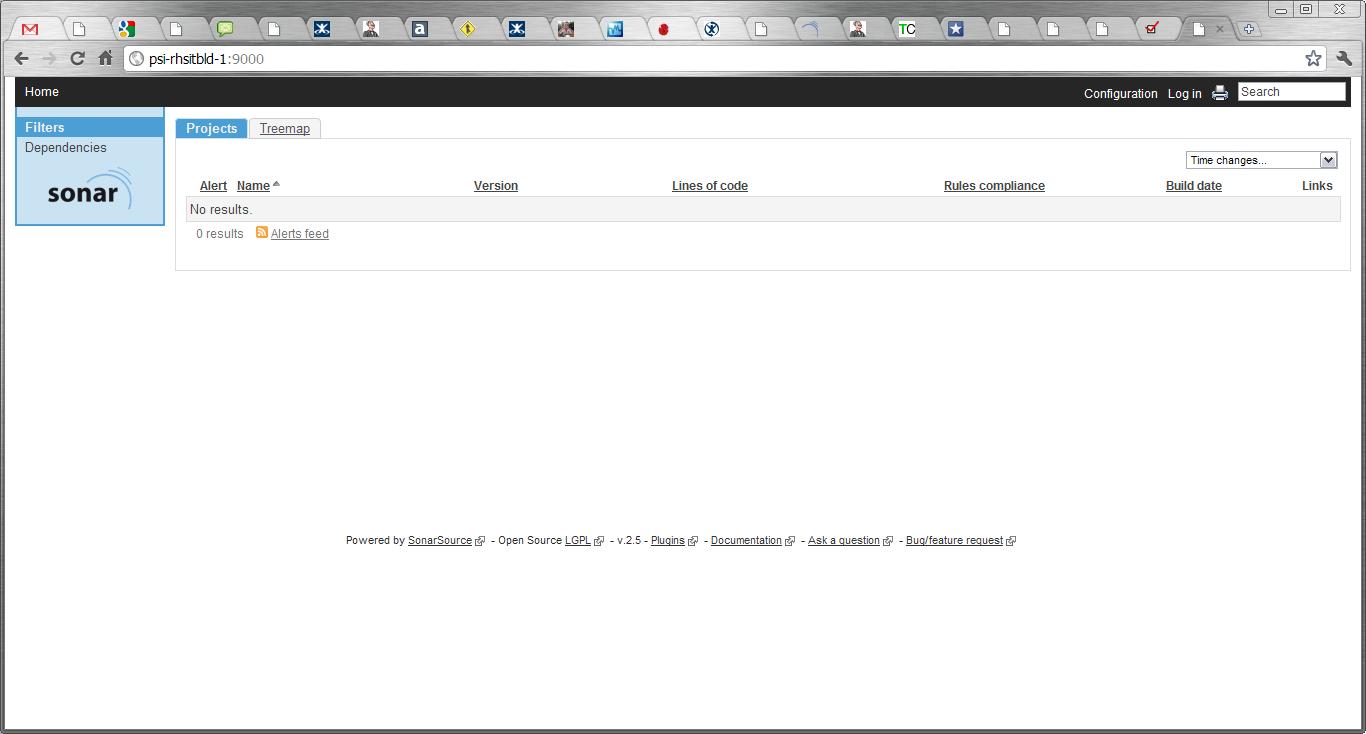
Sometimes it can take a few minutes for the server to start up, so be patient. Eventually you’ll find your Sonar site up and running at http://{SERVERNAME}:9000 (where {SERVERNAME} is the name of your build server where you installed Sonar. It should look a bit like this:

Next, you have to configure Maven. I’m running with the default Apache Derby database which ships with Sonar, so I added the following section to my maven settings.xml (which I found under /home/maven/maven-2.0.9/conf). You need to add this to the <profiles> section:

<profile>
<id>sonar</id>
<activation>
<activeByDefault>true</activeByDefault>
</activation>
<properties>

<sonar.jdbc.url>
jdbc:derby://localhost:1527/sonar;create=true
</sonar.jdbc.url>
<sonar.jdbc.driver>org.apache.derby.jdbc.ClientDriver</sonar.jdbc.driver>
<sonar.jdbc.username>sonar</sonar.jdbc.username>
<sonar.jdbc.password>sonar</sonar.jdbc.password>
<sonar.host.url>http://localhost:9000</sonar.host.url>

</properties>
</profile>

Then you will need to run your first project against sonar! Go to the root of one of your projects on the build server (for me they were in /home/maven/Bamboo/xml-data/build-dir/PROJ_NAME) and run:

mvn clean install sonar:sonar

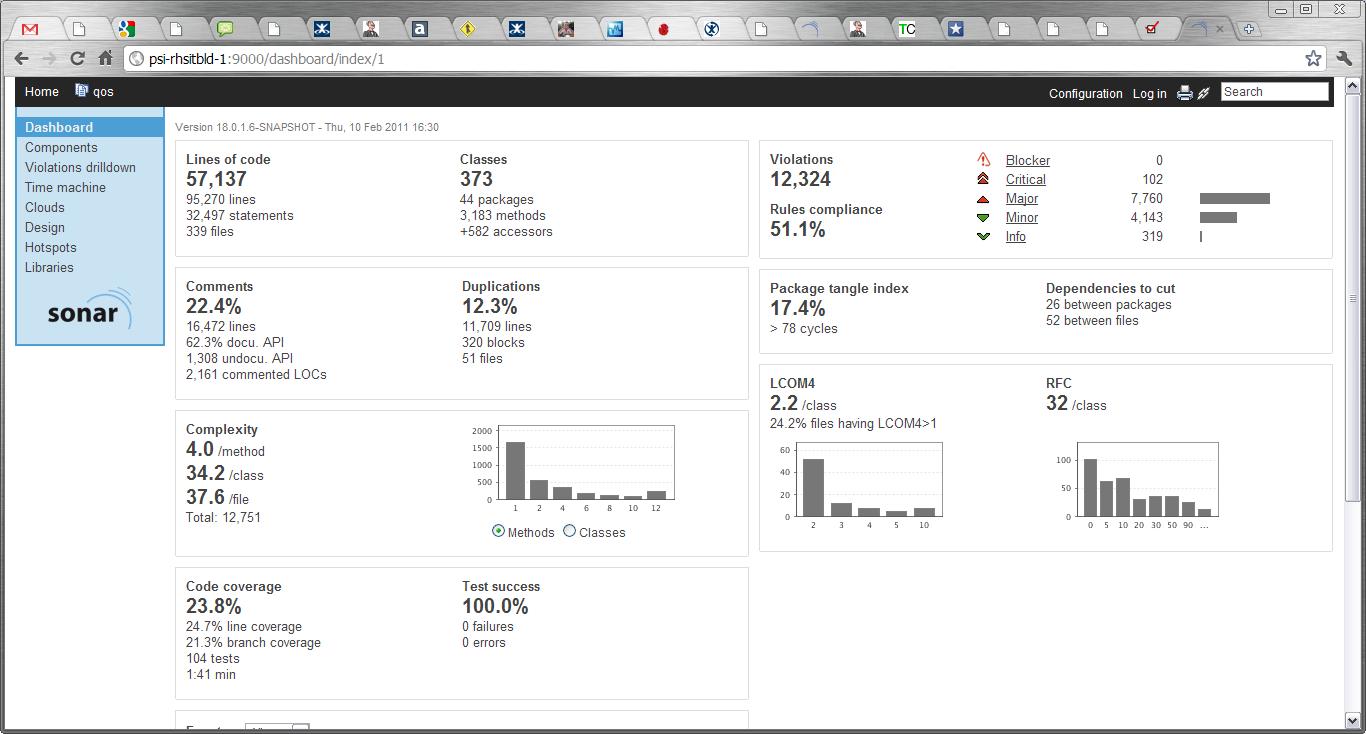
Go to http://{SERVERNAME}:9000 and you should now see your project listed. Click on it and revel in sonar goodness:

I’ll migrate to a MySQL db next week, and put an update here about what to do.

UPDATE:

Using a MySql db is a doddle. Once you’ve installed the MySql you simply comment out the Derby db connection details and uncomment the MySql section in the sonar.properties file (which lives in the conf directory of your sonar installation)

sonar.jdbc.url:                            jdbc:mysql://localhost:3306/sonar?useUnicode=true&characterEncoding=utf8
sonar.jdbc.driverClassName:                com.mysql.jdbc.Driver
sonar.jdbc.validationQuery:                select 1

And that’s it!